
If you’re thinking of starting digital art for the first time, the following questions might have crossed your mind:
“ What do I need to start drawing? ”
“ How much will it cost to get drawing apps and digital drawing tools? ”
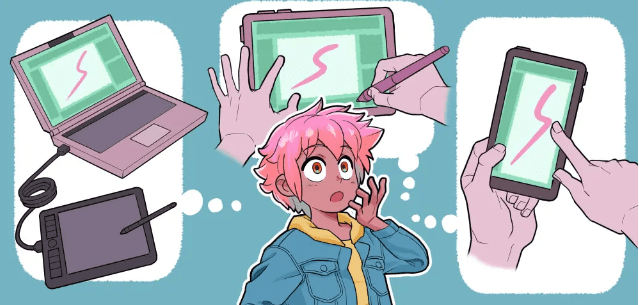
Devices: Computer, tablet, or smartphone?
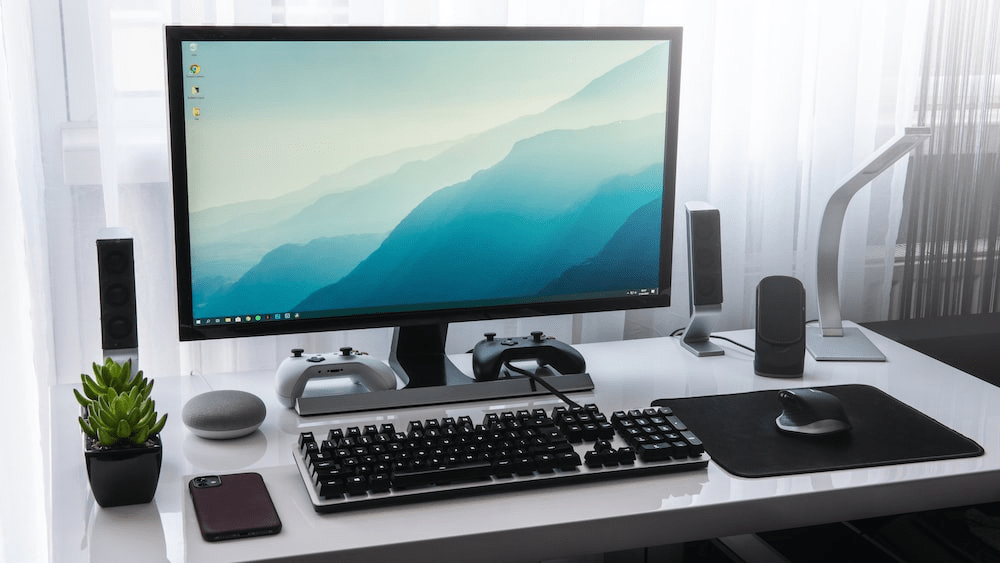
Drawing on a computer
If you already own a computer, good news! You can continue using it without buying a new one.
Memory-wise, although you can draw using only 4 GB memory, we recommend going with 8 GB or more if you want to get the most out of your new device.
Many recommend Mac computers for drawing, but you can absolutely draw without any problems on a Windows computer or on a laptop. Feel free to choose the operating system you prefer.
If you use a computer, you might want a pen tablet
If you have a computer that does not have a touchscreen for drawing, you’ll need a pen tablet.
You can draw smoother lines with a pen tablet, so if you want to draw a picture on a computer or on a laptop, you should prioritize this tool. You will find several companies that sell pen tablets, but Wacom tablets are the most popular products. Wacom’s product line-up is really solid and works well for beginners.
The Website Of Wacom : https://wacomstore.ca/product-category/drawing-tablets/intuos/?gclid=CjwKCAjw9-6oBhBaEiwAHv1QvD0NscdnJNlxfbik0Fn9qAUWRSXEg7ZAErutw5XkFHJTFlLZWEPn5RoCEJIQAvD_BwE
Step-to-step Draw Digital Art with Computer :
- Check how Memory-wise your computer have
- Is it enough to open the painting software
- See what painting software, is suitable for you
- Buy and download your painting software
- Buy the pen tablet
- Install the software of the pen tablet
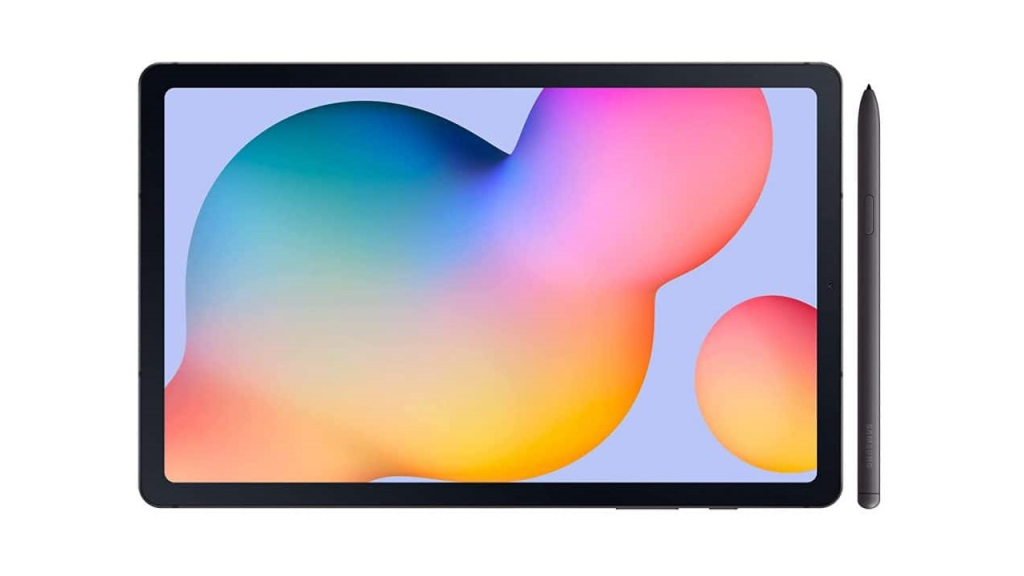
Drawing on a tablet
Tablets make it easy to start drawing digitally! All you need is a drawing app and a tablet stylus to get going. Some more well-known options are Apple iPads with the Apple Pencil (2nd generation) and the S pen for Galaxy tablets. Specifications for different apps are outlined in their respective app stores.
The Website Of Apple : https://www.apple.com/ca/apple-pencil/
Step-to-step Draw Digital Art with Tablet :
- Choose a suitable tablet with digital pencil
- Open app store on table
- See what painting software, is suitable for you
- Buy and download your painting software
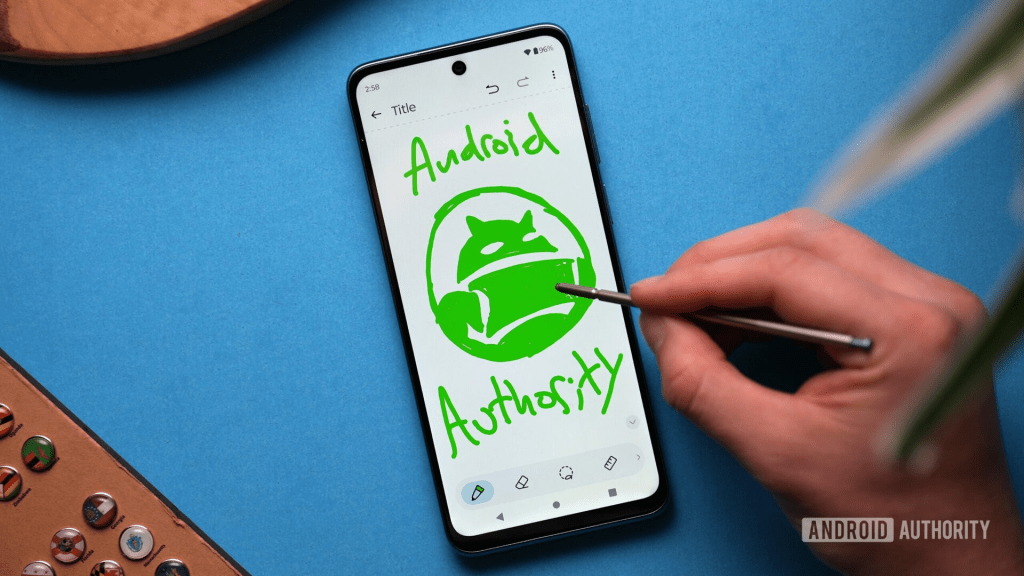
Drawing on a smartphone
You can download an art app and draw on your smartphone as is, but some smartphones support pen pressure sensitivity, which is important if you want to draw lines as you would when drawing traditional art. Check if your phone can detect pen pressure. Samsung Galaxy devices can use the S pen and Androids and iPhones with pressure sensitivity can use Wacom stylus pens like the Bamboo Sketch.
Step-to-step Draw Digital Art with smartphone :
- Check your phone is it having a function of detect pen pressure
- Choose a suitable digital pencil
- Open app store on table
- See what painting software, is suitable for you
- Buy and download your painting software

Summarize
- Choosing computer should be check their Memory-wise is it enough
- Choosing computer should be have a pen table
- Choosing table should be having a drawing app
- Choosing smartphone should be check is it have a pen pressure sensitivity support
 Demo Blog